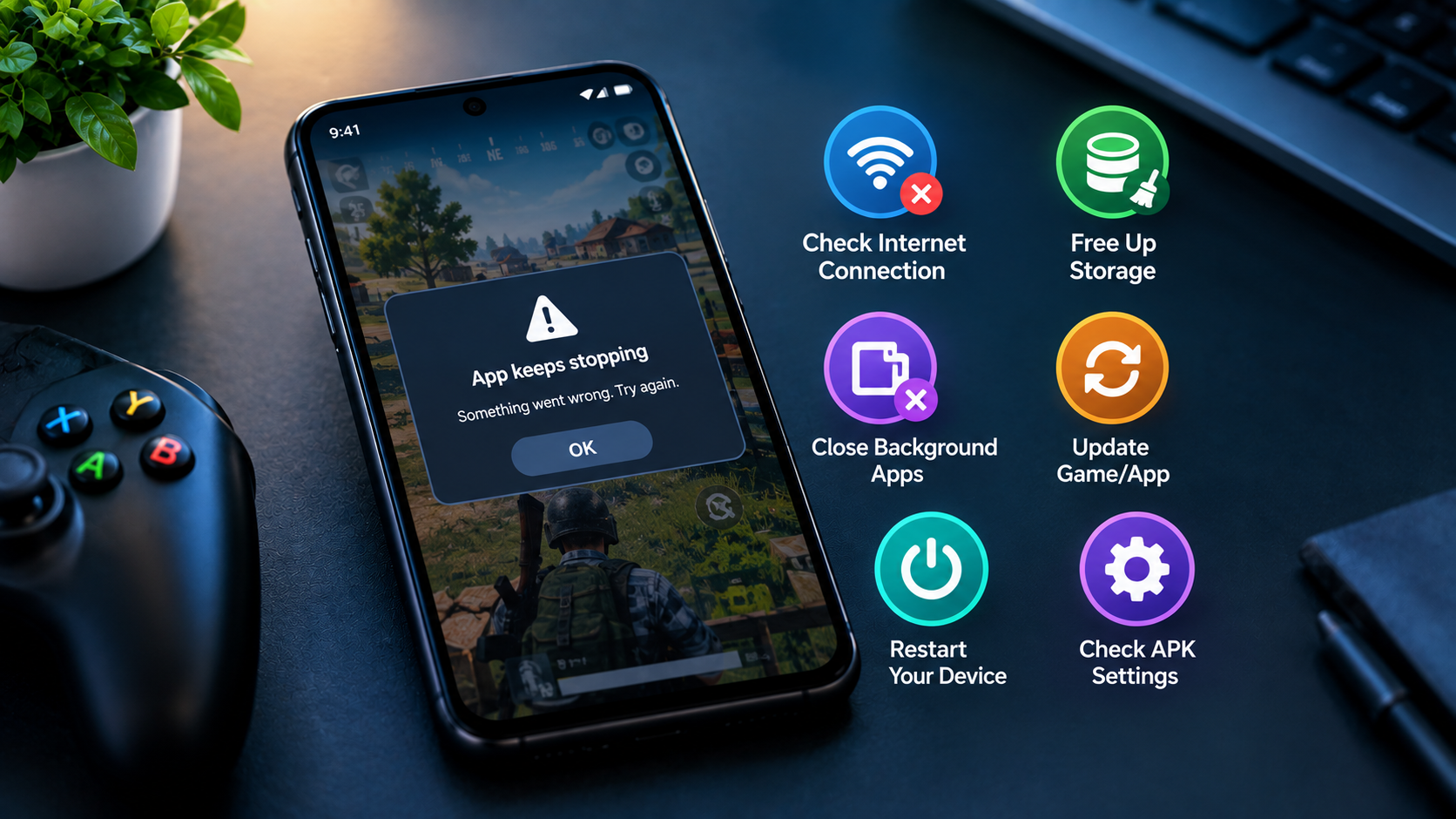
It can be extremely irritating to play on an Android phone when one of your apps shuts down unexpectedly, or your phone hangs and stops working. Reasons for gaming app crashing on Android can include lack of internet, low storage space, and an app or device being slow. So here’s why your app keeps crashing on your mobile.
Why Do Android Games Crash?
Here are some of the reasons android game crashing. Not enough phone memory. Running a lot of applications in the background or having your storage full all the time may result in a situation where your gaming app does not have enough resources to work.
Another reason may be internet speed. Some games require extra data to be loaded the first time you launch the game. If your internet connection is slow, you will experience hanging or failure to load.
You may encounter an incompatibility issue if you use an older, outdated version of the APK or app. Software updates are provided for all software, including apps, to keep them up to date and safe for your device. That’s the reason why updating Android apps is one of the important things to make your app work better.
Common Signs of Gaming App Problems
The issues where the game keeps crashing can happen when your game crashes 1-2 seconds after booting and during playing. Meanwhile, other symptoms include sluggishness, black screens, loading errors, and the app hanging while playing.
On top of that, some users face an issue like cannot login the app or game failed to load. This gaming app error may occur due to network issues, low memory, outdated software, or corrupted game files.
App Crash Troubleshooting Steps
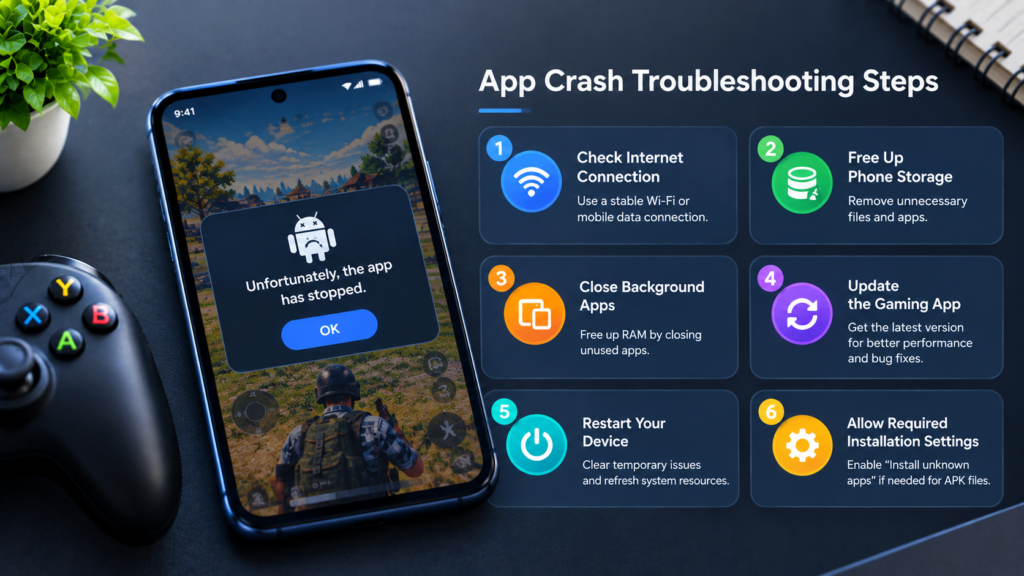
Luckily, app crash troubleshooting can be as easy as:
Check Your Internet Connection
Verify that you are connected to a fast Wi-Fi or mobile data connection. If you’re experiencing freezing and loading issues, switch to a faster Wi-Fi or mobile data connection.
Free Up Phone Storage
Check your storage and get rid of files you no longer need and programs you do not use at all. It will free space on your device, and this way, the device will be able to work more efficiently with gaming apps.
Close Background Apps
Having several applications open at the same time can use RAM, depending on how it is used in some situations. Make sure to close any background apps that are not needed.
Update the Gaming App
Updated versions may contain enhancements to performance, stability, and compatibility, as well as bug fixes, which may prevent it from crashing.
Restart Your Device
A fresh restart can clear temporary system issues and leave more room for resources. If the app keeps crashing, rebooting the phone can be worth a try.
Allow Required Installation Settings
If an APK does not install correctly, check whether your browser has permission to install unknown apps. This setting may be required when installing an APK downloaded outside the Google Play Store.
How to Prevent Future Crashes
To speed up your Android app, update your device, keep sufficient free space on your device, ensure a stable internet connection, make sure you download APK files from trusted sources, avoid running several laggy apps at the same time, and do not use cheap devices.
Loading a game that loads additional data the first time you start it. If a game requires extra data to be loaded the first time it is started, load the game and wait for it to finish loading the data before starting to play. This could prevent the failed-to-load error.
Conclusion
From the information found on their provided Lucky 33 website, various issues can also arise, such as APK not installing, the application keeping hanging up or crashing, and games not loading. According to their website, crashes may be caused by a bad internet connection or overstretched phone memory, while some games require files to be downloaded once opened for the first time. If these issues persist, doing basic troubleshooting steps, making sure the app is updated, and having free memory available and a stable internet connection can help provide a much better Lucky 33 experience.